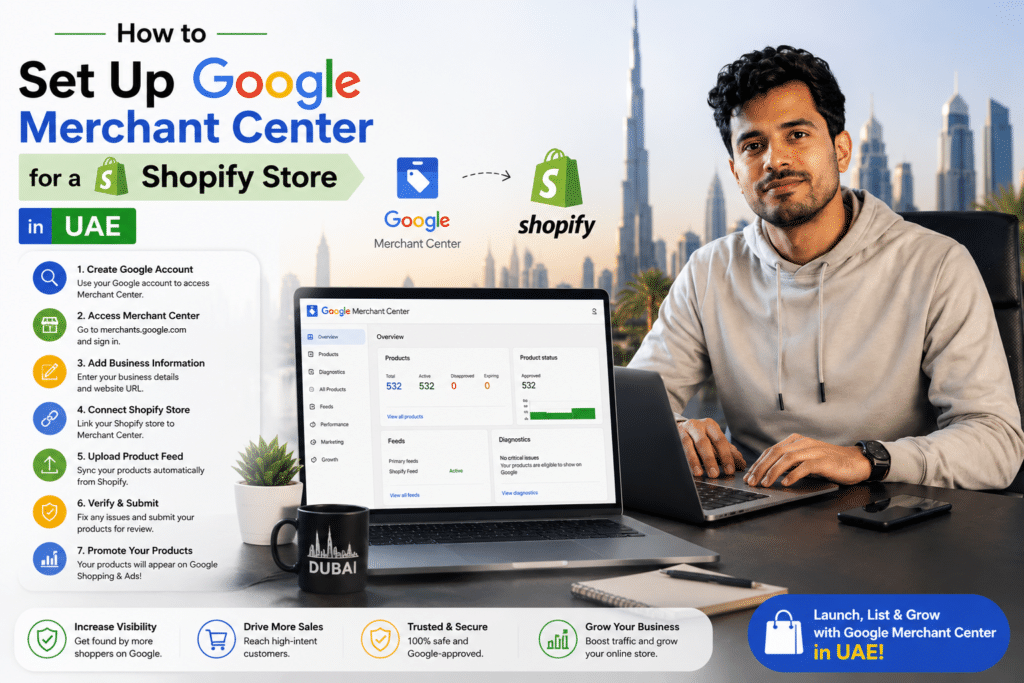
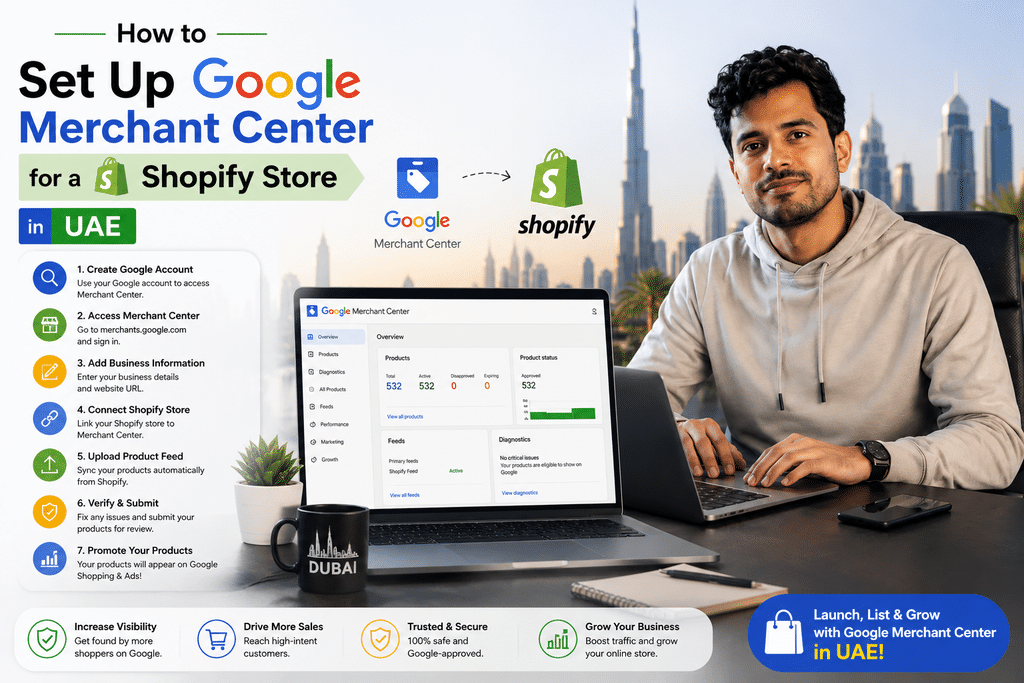
How to Set Up Google Merchant Center for a Shopify Store in UAE
If you are searching for how to set up Google Merchant Center for a Shopify store in UAE, you are probably ready to get your products in front of people who are already looking to buy. Google Merchant Center is the tool that sends your product data (titles, prices, images, availability) to Google, so your items can appear in Shopping results, product listings and ads. For a Shopify store in Dubai, Abu Dhabi or anywhere in the Emirates, it is one of the most valuable free steps you can take to get discovered.How to Set Up Google Merchant Center for a Shopify Store in UAE
The good news is that Shopify makes this much easier than it used to be. The setup is mostly done through one free app. The tricky part is getting the details right for the UAE market: AED pricing, VAT, shipping zones, return policy, Arabic and English content and Google’s product data rules. Get those wrong, and products get disapproved or your account gets suspended.
This guide walks you through the full process in plain steps, with the common mistakes to avoid. If you prefer to have it done for you, you can see my Shopify setup services or contact me here.
What Is Google Merchant Center and Why Does It Matter in the UAE?
Google Merchant Center is a free platform where you upload and manage your product information. Once your products are approved, they can show up across Google, depending on your country and eligibility. These can include Shopping results, product panels in search, Google Images, Maps and YouTube. It also powers paid campaigns such as Shopping ads and Performance Max in Google Ads.How to Set Up Google Merchant Center for a Shopify Store in UAE
For UAE sellers, this matters for a few reasons:
- Buyers search with intent. People search for things like “wireless earbuds Dubai” or “vitamin C serum UAE” when they want to buy.
- Mobile shoppers compare quickly. Seeing a product image, price and store name in search results builds trust before the click.
- It lowers dependence on social ads. Instagram and TikTok are great for discovery, but Google captures people who already know what they want.
- It scales with your budget. You can start with organic listings (where available) and add paid campaigns later.
Availability of free listings and some features depends on the country and Google’s current programs. Check the “Programs” or “Growth” section inside your Merchant Center account to see exactly what is open to the UAE right now.How to Set Up Google Merchant Center for a Shopify Store in UAE
What You Need Before You Start
Spend ten minutes on this checklist. It prevents most disapprovals.
1. A live Shopify store, not password protected. Google needs to crawl your site. Remove the storefront password before you connect.
2. A Google account you control. Use a business Google account, not a personal one that might be lost later. This account will own your Merchant Center.
3. Business details. Business name, address, phone number and email must be real and consistent with what is on your website.
4. Clear store policies. Publish pages for:How to Set Up Google Merchant Center for a Shopify Store in UAE
- Shipping policy (delivery areas, times and costs)
- Return and refund policy
- Privacy policy
- Terms and conditions
- Contact page with real contact details
Google checks that shoppers can understand how to buy, contact you and return an item. Missing information is one of the most common reasons for account problems.
5. AED pricing and VAT set correctly. The UAE has 5% VAT. In Shopify, check your tax settings so the price shown on your store matches what you submit to Google. A mismatch between the site and the feed causes disapprovals.
6. Good product data. Each product needs a clear title, accurate description, high-quality image, price, availability and (where applicable) brand and barcode (GTIN).How to Set Up Google Merchant Center for a Shopify Store in UAE
7. Working checkout. Google can review your checkout, so make sure payment methods work and the page loads properly. If you are still setting up payments, read my guide on choosing payment gateways for UAE ecommerce.
Step 1: Install the Google & YouTube App on Shopify
Shopify connects to Merchant Center through its free Google & YouTube app. Here is how to install it:
- Log in to your Shopify admin.
- Go to Apps and open the Shopify App Store.
- Search for Google & YouTube and click Install.
- Click Connect Google Account and choose the Google account you want to use. Allow Shopify to access the account information it asks for.
At this stage the app will also show a checklist of requirements your store has to meet. Do not skip it, because it tells you exactly what to fix.
Step 2: Connect or Create Your Merchant Center Account
After you connect your Google account, the app asks you to pick a Merchant Center account.
- If you already have one, select it. The list shows accounts where your Google account is an administrator.How to Set Up Google Merchant Center for a Shopify Store in UAE
- If you do not have one, click Create new and follow the prompts. You will confirm basic business information and agree to Google’s terms.
When you connect, Shopify tries to claim your store’s domain automatically. If the domain is already tied to a different Google account, you may need to remove that old claim or get access from the previous owner before it works. This often happens when a freelancer or agency created the first account, so it is worth asking them.How to Set Up Google Merchant Center for a Shopify Store in UAE
It is a good idea to confirm that you are listed as an administrator in the account, so you do not get locked out later.
Step 3: Set UAE Business Information in Merchant Center
This is the part most guides skip, and it is where the UAE-specific details matter. Open Merchant Center and go to the settings (gear icon), then Business info.
Check and fill in:How to Set Up Google Merchant Center for a Shopify Store in UAE
- Business name and address: Use your real registered business details. It should match your website footer and policy pages.
- Customer service contact: Add a phone number or email that works.
- Target country: Choose United Arab Emirates as the country where you want to sell.
- Language: English, and Arabic if you offer an Arabic version of your store.
- Currency: AED.
- Website URL and verification: Confirm that your domain is verified and claimed. The Shopify app normally handles this.
If you sell to other GCC countries too, you can add them later, but start with the UAE and get it approved first. Trying to target many countries at once makes troubleshooting harder.How to Set Up Google Merchant Center for a Shopify Store in UAE
Step 4: Configure Shipping and Returns for the UAE
Google wants shoppers to know what delivery will cost and how long it will take. Depending on the countries you ship to, you may need to set up your shipping rates to meet Merchant Center requirements, and any changes you later make in Shopify shipping settings are automatically reimported.
For a UAE store, set up:
- Shipping zones in Shopify, such as Dubai, Abu Dhabi, Sharjah and the rest of the UAE.
- Shipping rates: flat rate, free shipping over a certain amount or weight-based rates. Free shipping above a threshold is a great way to raise average order value.How to Set Up Google Merchant Center for a Shopify Store in UAE
- Delivery times: For example “1 to 3 working days.” Realistic times protect your reputation. If you work with couriers like Aramex or Emirates Post, confirm the typical delivery windows first.
- Return policy in Merchant Center: Add your return window and conditions, and make sure they match your website exactly.
Consistency is everything here. If your site says returns are accepted for 14 days and Merchant Center says 7, Google may flag it.
Step 5: Sync Your Products From Shopify
Here is the good part. When you set up the Google & YouTube app for the first time, all products available on your Shopify store are synced with Merchant Center automatically.How to Set Up Google Merchant Center for a Shopify Store in UAE
After the first sync:
- Open the app’s Overview or Product listings page to see which products were synced.
- Look at each product’s status. You will usually see approved, pending or needs attention.
- To fix a problem, open the product details and make the change. Edits in this view are synced automatically with Merchant Center.
You can choose between automatic sync, which is recommended and keeps everything updated, and manual sync, which is useful only if you want tighter control over what goes to Google.
Make Sure Products Are Available to the App
Only products that are active and available to your online store will sync. Draft products, archived items or those hidden from the online store sales channel will not appear. If products are missing, check the product’s sales channel settings first.vHow to Set Up Google Merchant Center for a Shopify Store in UAE
Step 6: Improve Your Product Data for Better Approval and Performance
Syncing is only the beginning. Google ranks and approves listings based on data quality. Follow Google’s product data specification and focus on these elements.
Titles. Put the most important words first. A good title often follows a pattern like Brand + Product Type + Key Feature + Size or Colour. Avoid ALL CAPS, promotional text like “Best price!” and keyword stuffing.How to Set Up Google Merchant Center for a Shopify Store in UAE
Descriptions. Write clear, accurate descriptions of the actual product. Do not copy supplier text word for word, because duplicate descriptions rarely help.
Images. Use sharp, clean photos on a plain background where possible. Avoid watermarks, logos overlaid on the product and placeholder images.
GTIN and brand. Where your products have manufacturer barcodes, add them. Google explains the rules for unique product identifiers in its help centre, and some categories have stricter requirements. For example, books need an ISBN and media products need identifiers such as UPC, EAN or JAN.
Category and attributes. Fill in product category, condition, age group, gender, colour and size where they apply. Apparel has extra requirements, so check those carefully if you sell fashion.
Price and availability. These must match your website exactly. Many disapprovals come from out-of-date prices or stock status.
If you want your store to rank in regular Google search too, combine this with good on-page work. My post on Shopify SEO for UAE stores covers it in detail.
Step 7: Connect Google Ads, Analytics and Tags (Optional but Useful)
Once Merchant Center is working, you can connect other Google services from the Shopify app overview, or from the Apps and services page in Merchant Center.vvHow to Set Up Google Merchant Center for a Shopify Store in UAE
- Google Ads: Needed if you want to run Shopping or Performance Max campaigns.
- Google Analytics: Helps you measure which products and campaigns actually drive sales.
- Google Business Profile: Useful if you have a physical store or pickup location.
The Shopify app installs the Google tags for each connected service. To avoid double-counting, remove any old tracking tags you added manually, such as ones in your theme code, so you do not measure conversions twice.
Step 8: Wait for Review and Monitor Your Status
After syncing, Google reviews your products and your account. This can take a few days, so do not panic if everything shows as pending at first. Keep an eye on:
- Product status: Approved, limited or disapproved
- Account issues: Notices about policies, website problems or missing details
- Diagnostics: Merchant Center’s Diagnostics (or Needs attention) section lists specific fixes
When a product is disapproved, read the reason, fix the data in Shopify, and allow the sync to update. If you need a fast re-check, you can request a review inside Merchant Center once the issue is resolved.
Common Problems When Setting Up Merchant Center for a Shopify Store in UAE
1. “Website not claimed” or domain already in use
Another Google account probably owns the domain claim. Ask the previous person to remove it, or contact Google support.
2. Products show in Merchant Center but “0 products” in Shopify
Some merchants report sync glitches with the app. Try disconnecting and reconnecting, check that products are available to the online store, wait a few hours and refresh. If it persists, contact Shopify or Google support.
3. Price or availability mismatch
Your feed does not match what Google sees on the product page. Check currency, VAT inclusion, sale prices and variant pricing. Make sure the page shows AED clearly.
4. Missing shipping or return details
Fill them in both Shopify and Merchant Center, and keep them consistent.
5. Policy or “misrepresentation” warnings
This often means Google cannot find enough trustworthy business information. Add real contact details, a physical or registered business address, clear policies and an About page. Make sure your checkout and payment pages work.How to Set Up Google Merchant Center for a Shopify Store in UAE
6. Missing GTIN or identifiers
Add barcodes if your products have them. If they truly do not (for example, custom handmade items), mark that correctly in the product data.
7. Restricted products
Some categories, such as certain health, beauty, supplements, electronics accessories and adult items, have extra rules. Read Google’s policy for your category before you sync.How to Set Up Google Merchant Center for a Shopify Store in UAE
Tips to Get More From Google Merchant Center in the UAE
- Use clear, local pricing. Always show AED prices, and be transparent about VAT and delivery fees.
- Offer popular payment methods. Apple Pay, cards, buy-now-pay-later options and cash on delivery can reduce checkout abandonment.
- Keep stock accurate. Out-of-stock items that still appear to be available cause disapprovals and unhappy customers.
- Bilingual content. If you have Arabic customers, adding Arabic product data and store pages can widen your reach.
- Start with best-sellers. If you plan to run ads, begin with a small group of top products and expand once the numbers make sense.
- Review regularly. Check diagnostics weekly. Small issues fixed early prevent large problems later.
How Long Does It Take?
If your store is ready, you can install the app and connect your accounts in about 30 to 60 minutes. Product review can take a few days. If you need to fix policies, product data or shipping, expect the full process to take a week or more. Rushing leads to disapprovals, so it is better to prepare properly first.
Should You Do It Yourself or Hire an Expert?
You can follow the steps above and handle everything alone, especially if you have a small catalog. However, if you have hundreds of products, complicated variants, regulated categories or you already got a suspension, an expert can save you a lot of time. You can look at my services or message me to discuss your store.How to Set Up Google Merchant Center for a Shopify Store in UAE
How to Set Up Google Merchant Center for a Shopify Store in UAE?
Is Google Merchant Center free to use?
Yes, creating an account and syncing products is free. You only pay if you run paid ads through Google Ads.
Do I need a physical shop to use Google Merchant Center in the UAE?
No. Online-only stores can use it, as long as you provide real business details, clear policies and a working website.
Can I use Google Merchant Center with Shopify without an app?
You can set it up manually with feeds, but the free Google & YouTube app is the easiest and most common way because it syncs products and updates automatically.
Why are my Shopify products not showing on Google?
Common reasons include pending review, disapproved products, missing shipping or return information, a claimed domain issue, or products not being available to the online store. Check the diagnostics in Merchant Center.
Do I need a GTIN for every product?
Not always, but many categories need identifiers, and having them improves approval and performance. Check Google’s rules for your product type.
Can I target multiple countries?
Yes, but begin with the UAE, get approved, then expand. Each country can have its own shipping and policy requirements.
Final Thoughts
Now you know how to set up Google Merchant Center for a Shopify store in UAE: prepare your store and policies, install the Google & YouTube app, connect or create your Merchant Center account, set your UAE business info, add shipping and returns, sync and clean your product data, and monitor the status. Most problems come from mismatched information or missing policies, so double-check those first.
Take it one step at a time, fix issues as they appear, and keep your data accurate. Once your products are approved, Google can become a steady source of high-intent customers for your Shopify store.How to Set Up Google Merchant Center for a Shopify Store in UAE
Need help with the setup? Get in touch at riazdadu.com and let’s get your products live on Google.